First Time in Taurus: Connecting with DeepChart Desktop
In this article, we will show you how to get started with Taurus, how to purchase your first evaluation or Direct Account, and how to configure your connection with DeepChart Desktop.
There are two ways to get started with Taurus:
- You can subscribe to Taurus before making a purchase.
- You can purchase an evaluation or Direct Account directly from the Taurus website, and the system will complete your subscription during the checkout process.
Both options are valid but we always recommend subscribing to the Taurus website. This allows you to receive emails with promotions, updates, and important news.
Once you are subscribed, your Taurus credentials will be sent to you by email. These credentials will be used to access everything related to your dashboard and trading platforms.
Your username is your email address, and your password is the one you receive by email ( please check spam folder too)
How to Purchase an Evaluation or Direct Account
If this is your first time visiting Taurus, you will find different sections at the top of our website:
Home, Plans, How It Works, Blog, Promo, FAQ and Help.
In the FAQ and Help section, you will find information about our evaluations, Direct Accounts, rules, platforms, and help articles. You will also be able to contact our support team from that section if you need assistance.
If you are already subscribed to Taurus, log in to your dashboard using your credentials. Once inside, click on Buy a Challenge. There, you will find the different types of accounts we offer.
If you are not subscribed yet, you can go directly to:
taurusarena.com
The system will guide you through the purchase process, and once your purchase is completed, you will be automatically subscribed to Taurus. Your credentials will then be sent to you by email.
During the purchase process, you will also need to choose the trading platform you want to use. The available platforms are:
DeepChart Web, DeepChart Desktop, DeepChart Mobile, ATAS, Quantower, and very soon TradingView.
In this guide, we will select DeepChart Desktop, since we will show you how to install the platform and configure your connection.
DeepChart Desktop also includes a SIM account, which you can use to practice before starting your real evaluation, if you wish.
DeepChart Web is available directly inside your dashboard and does not require any installation. Both DeepChart Web and DeepChart Desktop are intuitive and easy-to-use platforms.
Videos:
The following videos explain both ways to purchase your evaluation or Direct Account and get started with Taurus.
If This Is Your First Time and You Are Not Subscribed Yet
Watch the video here:
https://drive.google.com/file/d/1a0ApG6laDWw_A37685aqwZ1D1Kbwq9FI/view?usp=drive_link
If You Are Already Subscribed to Taurus
Watch the video here:
https://drive.google.com/file/d/1JNNcVwwCzYmmzrzDOlUe_f3JrAM__wbm/view?usp=drive_link
Checkout and Purchase Details
Once you select your platform, you will continue to the checkout section.
If this is your first purchase, you will need to enter your personal information, such as your full name, address, and phone number.
If you have already made a previous purchase, some of your personal information may already be saved. However, you may still need to complete your address or any missing details before continuing.
Before completing the payment, you will be able to review and adjust your order.
In this section, you can:
- Change the number of evaluations or Direct Accounts you want to purchase.
- Add your preferred affiliate coupon.
- Use Taurus Coins as a discount if you have them available.
- Include the End of Day Add-On if you wish.
Payment Methods
When you reach the payment section, you will be able to choose your preferred payment method.
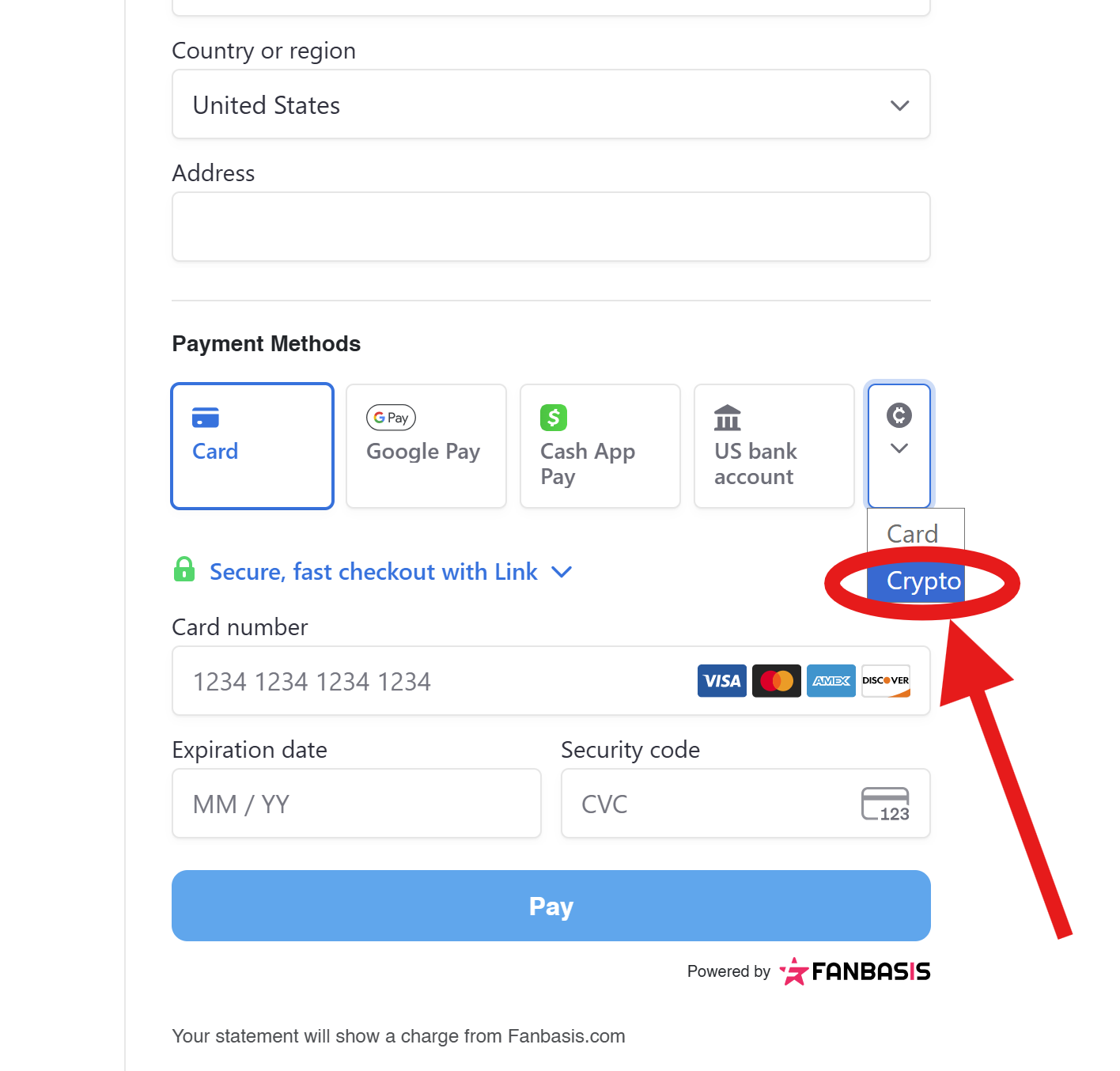
You can pay by credit card, or you can pay with crypto through the FanBasis page.
To pay with crypto, select Pay with Credit Card first. Then, once you are redirected to the FanBasis page, choose the crypto payment option.
After the purchase is completed, your evaluation or Direct Account will be activated immediately and will automatically appear in your dashboard.
DxFeed Agreement and DeepChart Web
If this is your first evaluation or Direct Account, you will need to sign the DxFeed Agreement.
This agreement will appear on your screen inside a yellow box. Once you sign it as Non-Professional, DeepChart Web will be enabled.
DeepChart Web does not require any installation. You can trade directly from your Taurus dashboard, making the process simple and convenient because the platform is already available inside.
Downloading and Setting Up DeepChart Desktop
If you prefer to use DeepChart Desktop, go to the DeepChart Desktop section inside your dashboard and download the installation file.
On that same page, you will also find your platform license. Copy the license by clicking the copy icon. You will need this license when setting up DeepChart Desktop.
You will also find tutorial videos in this section.
Mobile App
If you want to use the mobile app, you can download Volumetrica Prop, which is the mobile application.
DeepChart Desktop Installation and Connection Steps
These are the steps you need to follow to install DeepChart Desktop and prepare your connection for the first time.
Once you are inside your Taurus dashboard, go to the DeepChart Desktop section. From there, accept the required agreements and download the installation file.
After downloading the file, install DeepChart Desktop on your computer. Once the installation is complete, the DeepChart Desktop icon will appear on your screen.
When you open DeepChart Desktop for the first time, the platform will ask you to enter your user and your DeepChart license, which you must copy from your Taurus dashboard as shown in the video. Your user is the email address you used to subscribe to Taurus and purchase your account.
Please remember that access to DeepChart is only available when you have an active Taurus account. This can be an active evaluation, an active Direct Account, or an active Profit Account.
Once you enter the required information, the platform will be ready, and you will be able to continue with the connection setup.
Connection Setup
Once DeepChart Desktop is installed and ready, you can begin setting up your connection.
Before starting the connection setup, make sure you do not have any charts open. You should also confirm that DeepChart Web or Volumetrica Web is disconnected, since only one active connection can be used at a time.
If another connection is active before you begin, the setup may not work correctly, and the changes may not be applied properly.
Go to Select a Connection and click on Feed Settings. Then select Add Connection.
Enter a name for your connection and keep the Feed Source set as dxFeed Prop. After that, enter your Taurus credentials.
Your user is the email address you use to access your Taurus dashboard, and your password is the same password you received by email and use to log in to your dashboard.
Once all the information has been entered correctly, click Save.
If you have previously created other connections, especially during earlier setup attempts, we recommend removing any old or incorrect connections before continuing. To do this, select the connections you no longer need and click Remove. This helps prevent conflicts and ensures that the platform uses the correct login information.
After saving the new connection, go to Options and open Symbol Manager.
From there, search for the market you want to trade. For example, if you trade instruments included in CME, search for CME. If it does not appear in the main list, go to Subscribe, search for CME, add it, and then return to the main list to search for it again.
Once CME appears in the main list, select it and click Change Connection. Then choose the connection you just created and click Set.
If you have only created one connection, that will be the only option available. However, if there are multiple connections in the platform, make sure the correct one is selected before continuing.
Once everything is configured and saved, select your connection and connect to the platform.
After the connection is active, you can open your first chart by selecting CME and then choosing the instrument you want to trade.
Complete Installation and Connection Video:
https://drive.google.com/file/d/1A-LjK7I_PIC8--L9zcLfTcbe_n8LFKds/view?usp=sharing
Was this article helpful?
That’s Great!
Thank you for your feedback
Sorry! We couldn't be helpful
Thank you for your feedback
Feedback sent
We appreciate your effort and will try to fix the article